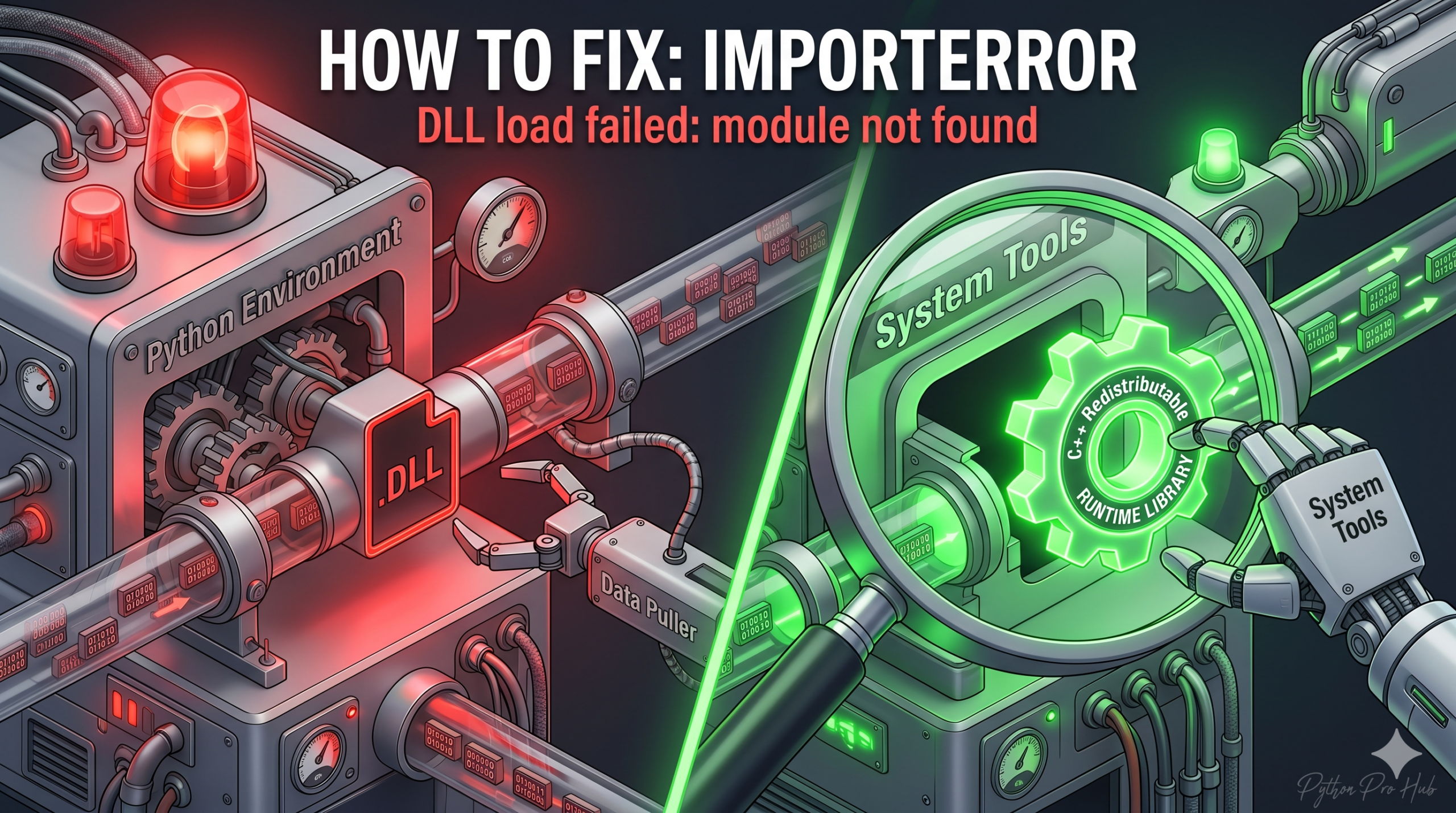
Every Windows-based Python developer dreads encountering the notorious ImportError: DLL load failed. If you have struggled with an ImportError DLL load failed, you’re not alone. Generally, this nightmare error surfaces when attempting to import heavy-duty data science or computer vision libraries like numpy, pandas, tensorflow, or cv2.
What does it actually mean? Essentially, Python attempted to execute the compiled C/C++ backend of your library, but a required underlying Windows system file (Dynamic Link Library) is completely missing from your system path. Let’s explore the most common causes and how to permanently fix them.
⚡ Quick Fix: ImportError: DLL load failed while importing – Windows Visual C++ Runtime, Corrupted Install, and DLL Path Fix
Python found the library but cannot load its compiled C++ backend — a missing runtime, corrupted cache, or unregistered DLL directory blocks the import before a single line of your code runs.
# Fix 1 — Install Microsoft Visual C++ Redistributable (x64)
# Download vc_redist.x64.exe from Microsoft, install, then reboot

# Fix 2 — Force a clean reinstall without pip's cached wheel
pip uninstall numpy
pip install --no-cache-dir numpy

# Fix 3 — Conda environment: let conda resolve C++ deps
conda install numpy

# Fix 4 — Python 3.8+: register custom DLL directory before import
import os
os.add_dll_directory(r"C:\absolute\path\to\your\custom\dlls")
import cv2  # Now resolves the C++ backend correctly
This tells you exactly where your boundary is — now read through the 4 root causes below to find which one broke your code and fix it permanently.
Cause 1: Missing Visual C++ Redistributable (Most Likely)
By far, the most common culprit is a missing C++ runtime. Because many high-performance Python packages are pre-compiled using Microsoft’s C++ tools, your operating system must possess the corresponding redistributables to execute them properly.
The Fix:
- Navigate to the Official Microsoft Visual C++ Downloads page.
- Next, download the appropriate architecture version (typically the
x64version,vc_redist.x64.exe). - After that, install the downloaded executable.
- Importantly, restart your computer to ensure all system environment variables update correctly.
- Finally, try running your Python script again.
Cause 2: Corrupted Installation / Conda Conflict
Occasionally, pip might fetch a cached binary package (wheel) that conflicts with your specific local environment. Alternatively, mixing conda and pip commands in the identical virtual environment frequently breaks DLL linkages.
The Fix: You must force a clean reinstallation. For pip users, clearing the cache ensures you pull a fresh version:
pip uninstall numpy
pip install --no-cache-dir numpy
However, if you rely on Anaconda, it is much safer to rely entirely on Conda’s internal dependency solver to handle C++ dependencies:
conda install numpy
Cause 3: Missing Media Pack (Windows N Editions)
If you happen to reside in Europe and use a “Windows N” edition, your operating system ships without standard media playback capabilities. Consequently, libraries relying on specific media codecs (like opencv-python or pygame) will crash instantly upon import.
The Fix: Open your Windows Settings, navigate to “Apps,” and search for “Optional Features.” From there, add the “Media Feature Pack.” Afterward, reboot your machine to apply the changes.
Cause 4: Python 3.8+ Security Changes (Pro Tip)
Starting in Python 3.8, the core development team fundamentally altered how Windows resolves DLL paths for security reasons. Specifically, standard system PATH variables are no longer automatically searched when importing external C-extensions.
The Fix: If you are manually dropping custom DLLs into a project folder (common with specialized hardware SDKs or custom OpenCV builds), you must explicitly declare their location in your Python script before importing the library. You can achieve this using os.add_dll_directory():
import os

# Explicitly point to the folder containing your required DLLs
os.add_dll_directory("C:\\absolute\\path\\to\\your\\custom\\dlls")

# Now the import will successfully locate the C++ backend
import cv2
Troubleshooting Windows DLL load failures can initially feel like looking for a needle in a haystack. Nevertheless, by verifying your Microsoft C++ runtimes, maintaining clean package environments, and understanding modern Python path restrictions, you can resolve these blockers in minutes.
Have you discovered another bizarre cause for this frustrating error? Drop a comment below to help out your fellow engineers!
What This Error Exposes About Python’s Windows Extension Loading Architecture
ImportError: DLL load failed while importing surfaces at the boundary between Python’s import system and Windows’ DLL loader. When Python imports a compiled extension like numpy or cv2, it hands control to Windows’ LoadLibrary API, which walks a resolution chain looking for every .dll the extension depends on. If any single dependency is absent — the Visual C++ runtime, a media codec, a hardware SDK library — LoadLibrary returns a failure code and Python surfaces it as ImportError. The extension never executes.
The Visual C++ Redistributable is the most common missing link because Python packages are pre-compiled against specific MSVC versions, and those runtimes are not bundled with Windows by default. A fresh Windows installation or a corporate image with locked-down software policies frequently ships without them. The fix is a one-time system-level install — vc_redist.x64.exe — followed by a reboot to flush the environment variable cache. Without the reboot, the newly registered DLL paths may not be visible to an already-running terminal session.
The Python 3.8 path security change is the most invisible cause because it silently broke code that worked correctly on Python 3.7. Before 3.8, os.environ['PATH'] was searched automatically when loading extension DLLs. After 3.8, only trusted system directories are searched by default — custom DLL folders dropped into project directories become invisible to the loader. os.add_dll_directory() registers a directory explicitly with Windows’ DLL search path for the duration of the process, and it must run before the import statement that needs it. For production deployments with custom hardware SDKs or specialized OpenCV builds, call os.add_dll_directory() in your application’s entry point and document every registered path — that makes the dependency explicit and prevents silent failures on clean deployments.