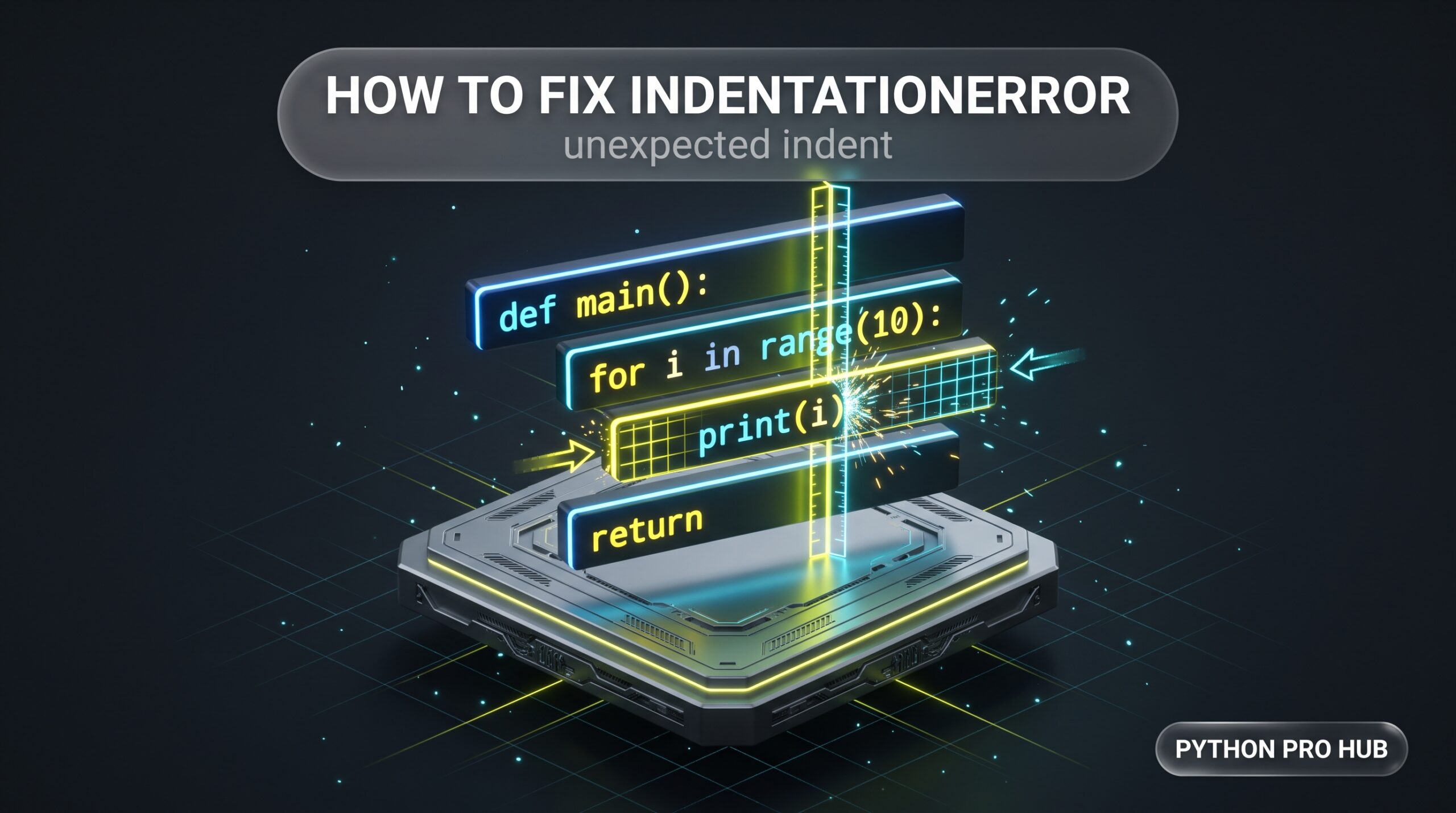
Unlike programming languages that use curly braces {} to group code (like C++ or JavaScript), Python uses structural whitespace. Your indents are not just for readability; they are strict grammatical rules that tell the interpreter where a function, loop, or class begins and ends.
When Python throws an IndentationError (or its direct subclass, TabError), it means your code contains invalid spacing. Because this is a parsing failure, it happens during the compilation phase, before your script even begins to execute.
Reading the IndentationError Traceback
Look closely at the traceback. Python will print the exact line where the block structure broke down and point to the offending character.
File "/var/www/app/main.py", line 4
    return price + tax
    ^
IndentationError: expected an indented block after 'if' statement on line 3
Tested Environment: Python 3.10.16 (Linux) | Python 3.9 messages and Jupyter behaviors referenced from official documentation; not run.
Part of: The Ultimate Python Debugging Guide
⚡ The Quick Fix: Show Invisible Characters
The vast majority of indentation errors happen because you literally cannot see the mistake. The human eye cannot easily distinguish between a Tab character and four spacebar hits, but Python treats them as entirely different entities.
The Immediate Fix: Turn on “Render Whitespace” in your code editor.
- VS Code: Press
Ctrl + Shift + P(orCmd + Shift + Pon Mac), typeRender Whitespace, and select View: Toggle Render Whitespace. - PyCharm: Go to
Settings > Editor > General > Appearanceand check Show whitespaces.
Once enabled, spaces appear as tiny dots (....) and tabs appear as arrows (→). If you see a mix of arrows and dots in the same hierarchical block, you have found your issue.
Find Mixed Tabs and Spaces with tabnanny
If you are dealing with a massive script, do not try to fix the lines manually by mashing the backspace key. Python ships with a built-in standard library module specifically designed to hunt down ambiguous indentation and mixed spacing.
Run this in your terminal:
$ python -m tabnanny your_script.py
your_script.py 3 '\tpass\n'
tabnanny prints the exact file, line number, and the raw character string (\t for tab) causing the ambiguity. Once found, use your IDE’s auto-format tool (e.g., VS Code’s “Convert Indentation to Spaces”) to instantly standardize the file.
Table of contents
- Reading the IndentationError Traceback
- ⚡ The Quick Fix: Show Invisible Characters
- Find Mixed Tabs and Spaces with tabnanny
- Common Causes of IndentationError
- Why “unindent does not match” Appears When Code Looks Aligned
- IndentationError in Python 3.9 vs 3.10+, Jupyter, and Pasted Code
- Stop IndentationErrors with Editor Settings and Linters
- Worked Example: The Empty Function Trap
- Frequently Asked Questions
- Official Documentation & Related Fixes
Common Causes of IndentationError
Because spacing rules dictate control flow, Python provides specific error messages depending on exactly how you misaligned your code. Here are the four you will see most often.
1. IndentationError: expected an indented block
- The Trigger: You opened a statement that demands a block (
if,def,for,class, ortry), but the very next line is not indented. - The Fix: Add 4 spaces to the line directly below the colon (
:). If you aren’t ready to write the logic yet, insert thepasskeyword. - How to tell it’s this one: You left a function or loop completely empty, or only put a comment inside it.
2. IndentationError: unexpected indent
- The Trigger: You added spaces to the beginning of a line for no grammatical reason.
- The Fix: Delete the extra spaces so the line sits perfectly flush with the block level above it.
- How to tell it’s this one: You accidentally bumped the spacebar while navigating your code.
3. IndentationError: unindent does not match any outer indentation level
- The Trigger: When you dedented (moved backward) to close a code block, you used the wrong number of spaces (e.g., 3 spaces instead of 0 or 4).
- The Fix: Align the problematic line strictly with the outer block (0 spaces) or the inner block (4 spaces).
- How to tell it’s this one: You deleted spaces one-by-one to exit a loop, but miscounted.
4. TabError: inconsistent use of tabs and spaces in indentation
- The Trigger: Python can execute a file that uses tabs in one function and spaces in another, but if you mix tabs and spaces ambiguously within the same hierarchical structure, it refuses to guess your intent and crashes.
def foo():
    if True:  # 4 spaces
→ pass # 1 tab (Crashes!)- The Fix: Highlight the code and use your IDE’s auto-format tool to convert the file to purely spaces.
- How to tell it’s this one: You copied code from the internet and pasted it into your own script.
Why “unindent does not match” Appears When Code Looks Aligned
Sometimes you will get an unindent does not match error when you swear your code is perfectly aligned.
This is usually caused by invisible tab characters. If you indent a block with a single Tab, and then indent the next line with spaces, your editor might display the tab as exactly 4 or 8 characters wide, making the lines look perfectly flush on your screen. However, Python calculates the strict token value.
def auth():
    if True:
→       print('ok')    # 1 Tab
        print('done')  # 4 Spaces (Crashes!)
Because the 4 spaces don’t match the inner block (1 Tab) and they don’t match the outer block (0 spaces), Python has no idea where print('done') belongs and halts the compiler with an unindent does not match error.
IndentationError in Python 3.9 vs 3.10+, Jupyter, and Pasted Code
How this error presents depends entirely on your environment.
- Python 3.9 and older (Unverified): The traceback is generic. It will simply say
IndentationError: expected an indented block. You have to hunt down the missing indent yourself. (Note: Python 3.9 introduced the powerful new PEG parser, laying the groundwork for better tracebacks). - Python 3.10+ (Verified): Python 3.10 fully leveraged the PEG parser to tell you exactly which line initiated the expectation:
expected an indented block after function definition on line 1. - Jupyter Notebooks / Colab (Unverified): Instead of file paths, the traceback will point directly to the execution cell (e.g.,
Cell In[1], line 4). - Copy-Pasting from PDFs (Verified): If you paste code from a PDF or rich-text blog, you might carry over an invisible “non-breaking space.” Python cannot read this and will throw a related sibling error:
SyntaxError: invalid non-printable character U+00A0. (See our SyntaxError Guide).
Stop IndentationErrors with Editor Settings and Linters
Stop this from ever happening again by configuring your environment:
1. Editor Settings (VS Code) Open your settings.json and force VS Code to insert spaces, ignoring whatever bad spacing a file already has:
"editor.insertSpaces": true,
"editor.detectIndentation": false
⚠️ Warning: Only apply this setting after you have used the “Convert Indentation to Spaces” command on your existing files. If you apply this to a file that is already heavily tab-indented, pressing Tab will insert spaces, immediately causing a TabError.
2. Linter Rules If you use Ruff or Flake8 in your CI/CD pipeline, enable rule E101 (mixed spaces and tabs). You can also explicitly ban tab-indentation entirely by enabling rule W191, ensuring your codebase remains universally standardized to 4 spaces.
Worked Example: The Empty Function Trap
Let’s look at a real-world scenario. A developer scaffolds out an application, leaving a function empty to finish tomorrow.
The Code:
def fetch_user_data(user_id):
    # TODO: Connect to database later

print('Starting app...')
The Traceback:
File "/var/www/app/worked_example.py", line 4
    print('Starting app...')
    ^
IndentationError: expected an indented block after function definition on line 1
The Thought Process & Fix:
- Python reads
def fetch_user_data(user_id):on line 1. It now strictly expects the next line of executable code to be indented. - It skips line 2 because it’s a comment (
#). - It skips line 3 because it’s empty.
- It hits
print('Starting app...')on line 4, which has 0 spaces. - Because the
defblock was never satisfied, the parser crashes. - The Result: The developer inserts
passwith 4 spaces on line 2. The script compiles perfectly.
Frequently Asked Questions
Different code editors have different default settings for how they render and insert tabs. If you write code in an editor that inserts physical Tab characters (which visually render as 4 spaces wide), and then open that file in an editor configured to render tabs as 8 spaces wide—or copy-paste it into a web form—the indentation will break visually and mathematically, leading to an IndentationError or TabError. Always configure your editors to convert tabs to spaces.
You should always use spaces for new code. The official Python Style Guide (PEP 8) explicitly states: “Spaces are the preferred indentation method.” Tabs should only be used if you are contributing to an older, legacy codebase that is already formatted entirely with tabs.
Run python -m py_compile your_script.py in your terminal. This invokes Python’s compiler module to check your file’s structural grammar. If your spacing is invalid, it will print the exact IndentationError traceback. (It is highly recommended to pair this with tabnanny to isolate invisible tab issues).
Official Documentation & Related Fixes
- Master Guide: The Ultimate Python Debugging Guide: Tracebacks, Exceptions, and Fixes
- Related Error: How to Fix SyntaxError: invalid syntax
- Official Python Docs: PEP 8 – Indentation Rules