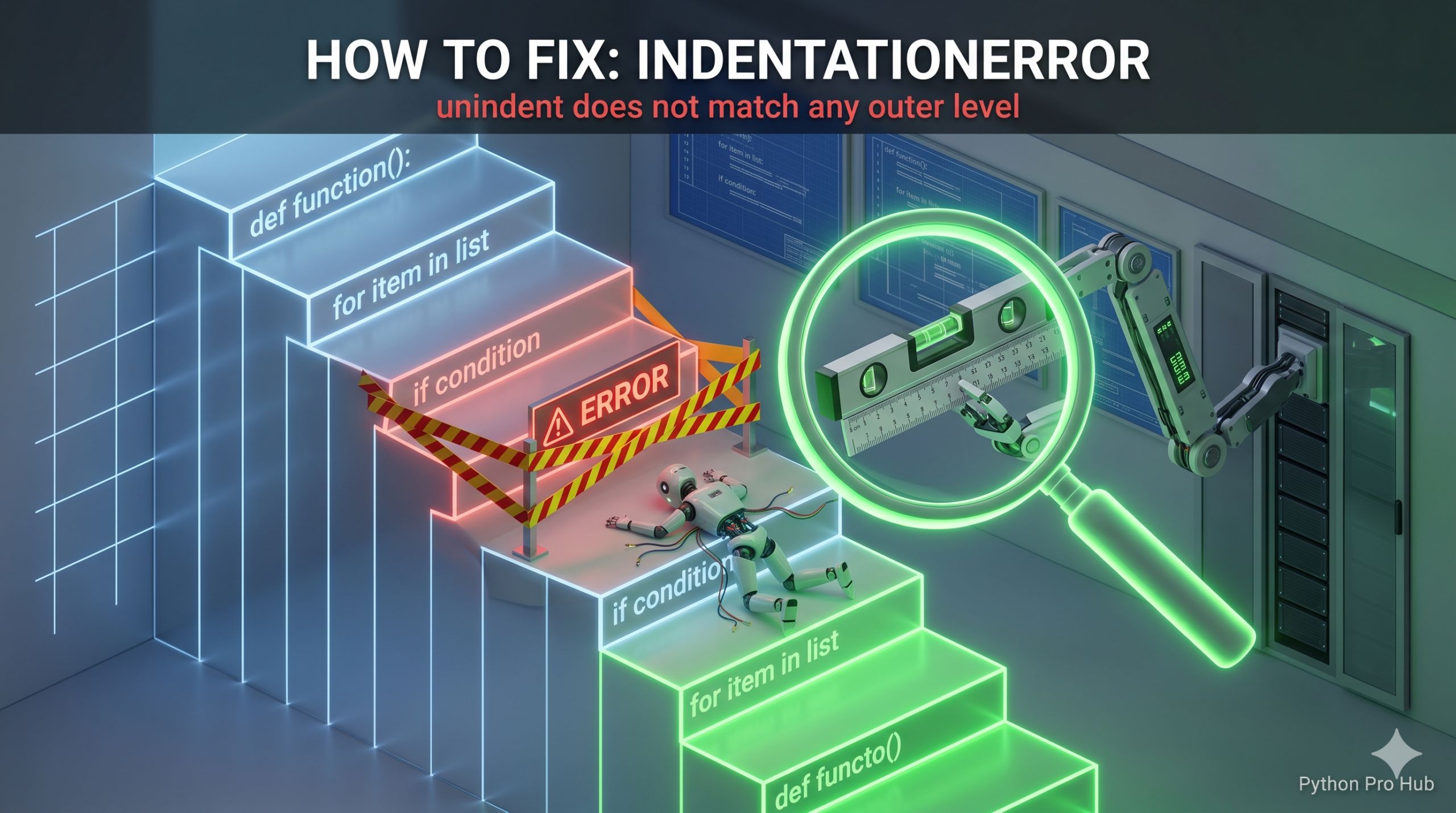
An IndentationError unindent is one of the most frustrating errors for beginners because it’s often invisible.
It means: “You tried to end a block of code (by un-indenting), but you didn’t line up with any previous block.”
⚡ Quick Fix: IndentationError: unindent does not match any outer indentation level – Python Mixed Tabs and Spaces Editor Fix
Your indentation landed at a column Python cannot map to any open block — mixed tabs and spaces or an off-by-one space is the cause, and your editor’s convert tool is the only reliable fix.
# Fix 1 — Align every block to a consistent 4-space indent
def my_func():
    if True:
        print("Hello")
    print("Goodbye")  # 4 spaces — matches the if block level

# Fix 2 — VS Code: F1 → "Convert Indentation to Spaces"
# Fix 3 — PyCharm: Edit → Convert Indents → To Spaces

# Fix 4 — Force spaces only at the top of every file
# Add to your project's .editorconfig:
# indent_style = space
# indent_size = 4
This tells you exactly where your boundary is — now read through the root causes below to find which one broke your code and fix it permanently.
The Cause
Python relies on strict alignment.
- Block 1: 0 spaces
- Block 2: 4 spaces
- Block 3: 8 spaces
If you un-indent to 3 spaces or 5 spaces, Python gets lost. It doesn’t know which block you are trying to return to.
Problem Code (Invisible):
def my_func():
    if True:
        print("Hello")
   print("Goodbye") # <-- CRASH! This is at 3 spaces, not 4 or 0.
Problem Code (Tabs vs Spaces): You used 4 spaces for the first line, but a TAB (which looks like 4 spaces) for the next. Python sees them as different characters.
The Fix: “Convert Indentation to Spaces”
You cannot fix this by eye. You must use your editor’s tools.
- VS Code:
- Look at the bottom right. Does it say “Spaces: 4” or “Tab Size”?
- Press
F1-> Type “Convert Indentation to Spaces”.
- PyCharm:
- Edit -> Convert Indents -> To Spaces.
- Visual Fix:
- Turn on “Render Whitespace” in your editor settings. This will show dots
.for spaces and arrows→for tabs. Make sure they all match!
- Turn on “Render Whitespace” in your editor settings. This will show dots
Once you fix the invisible characters, simply delete the indentation on the error line and hit Tab again to align it correctly.
What This Error Exposes About Python’s Indentation Parser
IndentationError: unindent does not match any outer indentation level is Python’s tokenizer failing to resolve a dedent token against its indentation stack. Python tracks every new block by pushing the current indentation level onto an internal stack — a def, if, for, or with statement pushes a new level, and a dedent pops back to a previous one. When the tokenizer reads a line indented at 3 spaces and the stack holds only 0 and 4, there is no valid level to pop to. Python raises the error at the parse stage, before executing a single instruction.
The tabs-versus-spaces variant is the most dangerous form because it is visually undetectable. A tab character and four space characters render identically in most editors, but Python’s tokenizer treats them as completely different byte sequences. A file that mixes both will pass a visual inspection and fail the parser every time. Python 3 made the correct call by banning mixed-indentation files entirely — if your file contains both tabs and spaces used for indentation, Python raises TabError rather than silently misreading your block structure the way Python 2 did.
The .editorconfig fix is the architectural solution that prevents the problem across an entire project and every developer on it. A single file at the project root with indent_style = space and indent_size = 4 configures every compatible editor — VS Code, PyCharm, Vim, Neovim — to emit spaces on every Tab keypress automatically. Combined with a flake8 or ruff check in your CI pipeline that rejects files with mixed indentation, this error stops reaching your terminal entirely and never appears in a code review again.