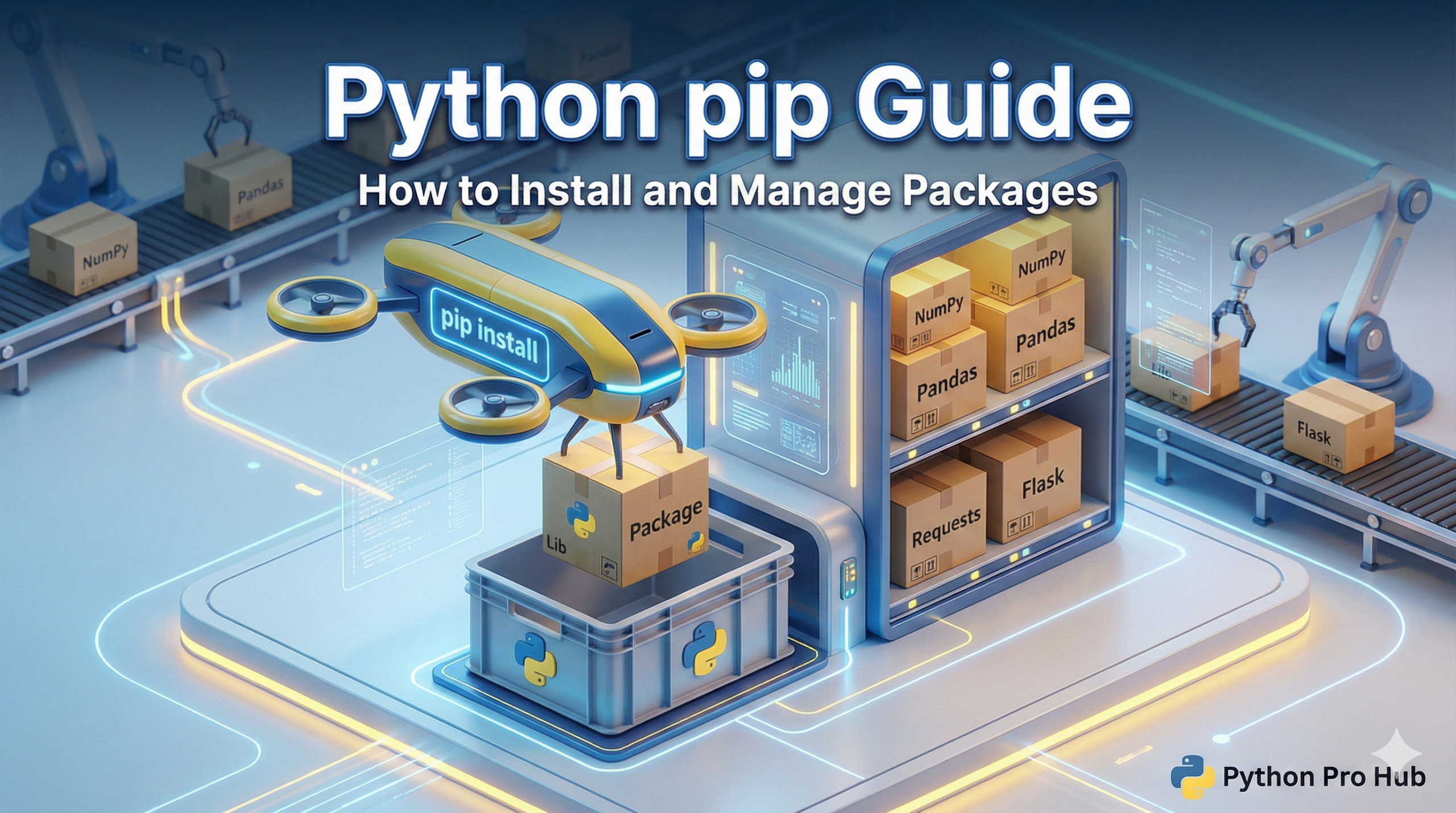
Python is famous for its “standard library” (built-in tools), but its real power comes from the 300,000+ third-party packages available on the Python Package Index (PyPI).
To get these packages, you use pip. A thorough guide on Python pip can help with troubleshooting installation issues.
pip stands for “Pip Installs Packages.” It’s the standard tool for installing libraries like Flask, Django, and Pandas.
How to Check if You Have pip
Open your terminal or command prompt and type:
pip --version
If you see a version number (like pip 23.0...), you’re good to go. It comes installed by default with modern Python. Additionally, a pip guide focused on Python can assist with managing weird cases.
1. Installing a Package
To install a package, just tell pip its name.
pip install requests
This will download the latest version of the requests library and install it into your current environment.
2. Installing a Specific Version
Sometimes you need an older version of a library to make a specific project work.
pip install flask==2.0.1
This forces pip to install exactly version 2.0.1.
3. Listing Installed Packages
Want to see what you have installed in your environment?
pip list
This shows a list of every package and its version number.
4. The requirements.txt File
Professional Python developers use a file called requirements.txt to list all the packages a project needs, and following a Python pip guide can be helpful in this.
To install everything in a requirements file at once:
pip install -r requirements.txt
Summary
pip is your gateway to the wider Python ecosystem. Always remember to use it inside a Virtual Environment to keep your projects well organised!
Key Takeaways
- Python’s power lies in its extensive third-party packages available on the Python Package Index (PyPI).
- You use pip to install and manage these packages effectively.
- Check if pip is installed by typing ‘pip’ in your terminal; it comes with modern Python installations.
- You can install packages, specify versions, and list installed packages easily with pip commands.
- A requirements.txt file helps manage project dependencies, and using pip within a Virtual Environment keeps projects organised.