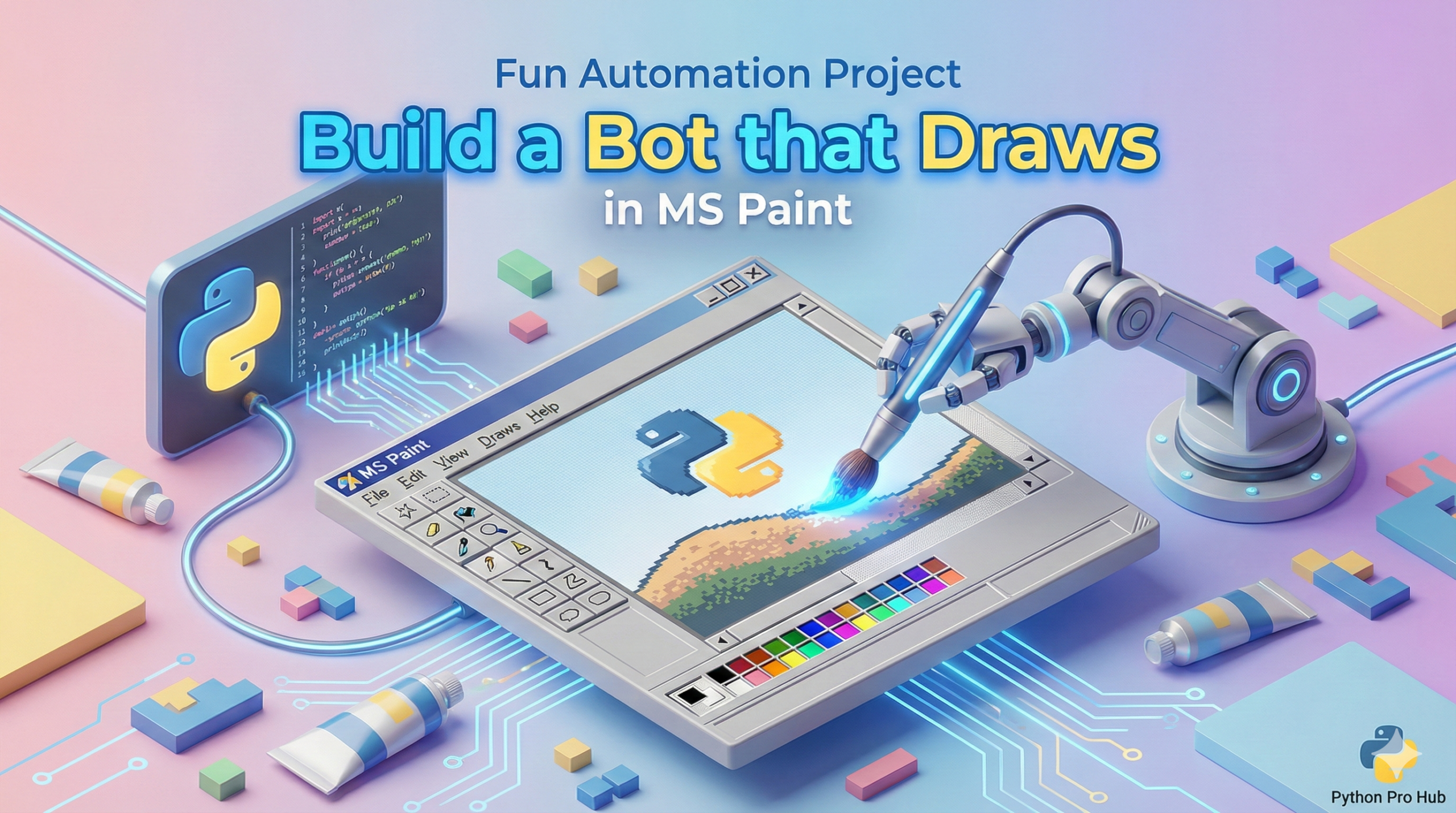
Let’s use our PyAutoGUI automation skills to do something visual: make a bot that draws for us. In this article, we’ll walk through a fun PyAutoGUI Project that creates digital drawings automatically.
⚠️ The Fail-Safe
As always, PyAutoGUI controls your real mouse. Remember the fail-safe: Slam your mouse cursor into the top-left corner of the screen to stop the script.
import pyautogui
import time

# 1. Open MS Paint
pyautogui.hotkey('win', 'r') # Open the "Run" box
time.sleep(1)
pyautogui.write('mspaint')
pyautogui.press('enter')

# Give the app a few seconds to open
time.sleep(3)

# 2. Click in the middle of the canvas to give it focus
width, height = pyautogui.size()
canvas_center = (width / 2, height / 2)
pyautogui.click(canvas_center)

# 3. Draw a square
distance = 200
pyautogui.mouseDown() # Click and hold
pyautogui.dragRel(distance, 0, duration=0.2)  # Move right
pyautogui.dragRel(0, distance, duration=0.2)  # Move down
pyautogui.dragRel(-distance, 0, duration=0.2) # Move left
pyautogui.dragRel(0, -distance, duration=0.2) # Move up
pyautogui.mouseUp() # Let go

print("Square drawn!")
This is a simple example, but you can use it to automate any repetitive task in any program.