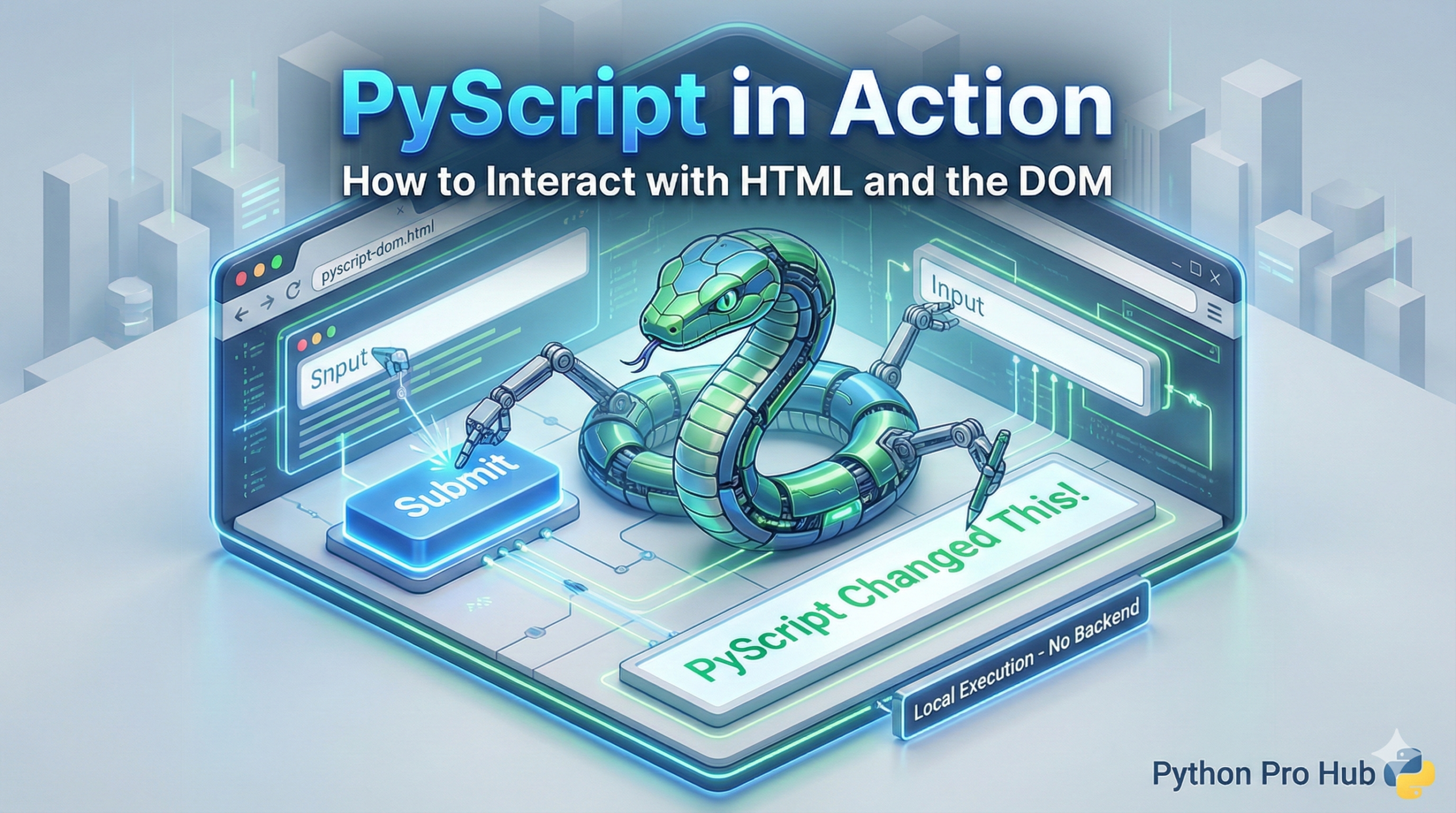
In our Intro to PyScript, we showed how to run Python in a browser. But how do you make it interactive? If you want to interact with the PyScript HTML DOM, how do you read an HTML input box or write a result back to the page?
You do this by interacting with the DOM (Document Object Model). PyScript gives you two ways to do this.
1. The Easy Way: pyscript.write()
PyScript provides a simple function to write data out to an HTML element.
index.html
<head>
  <link rel="stylesheet" href="https...pyscript.css" />
  <script defer src="https...pyscript.js"></script>
</head>
<body>
  <h2>My To-Do List</h2>
  <div id="tasks"></div> <py-script output="tasks">
    # This Python code will output to the div with id="tasks"
    my_tasks = ["Buy milk", "Learn PyScript", "Sleep"]

    html = "<ul>"
    for task in my_tasks:
      html += f"<li>{task}</li>"
    html += "</ul>"

    html # The last line is what gets "printed" to the element
  </py-script>
</body>
2. The Powerful Way: document.getElementById()
PyScript also gives you access to all the same functions that JavaScript uses to control a page.
Let’s build a text reverser.
index.html
... (head is the same) ...
<body>
  <input id="user-input" type="text" placeholder="Type something...">
  <button id="reverse-btn">Reverse It!</button>
  <h2 id="output"></h2> <py-script>
    from pyscript import document

    def reverse_text(event):
      # 1. Read the value from the input box
      text_in = document.getElementById("user-input").value

      # 2. Process it in Python
      text_out = text_in[::-1] # Python's famous reverse-string slice

      # 3. Write the result to the h2 tag
      document.getElementById("output").innerText = text_out

    # 4. Connect the button to the function
    reverse_button = document.getElementById("reverse-btn")
    reverse_button.addEventListener("click", reverse_text)
  </py-script>
</body>
Now you have a fully interactive web page built with Python!