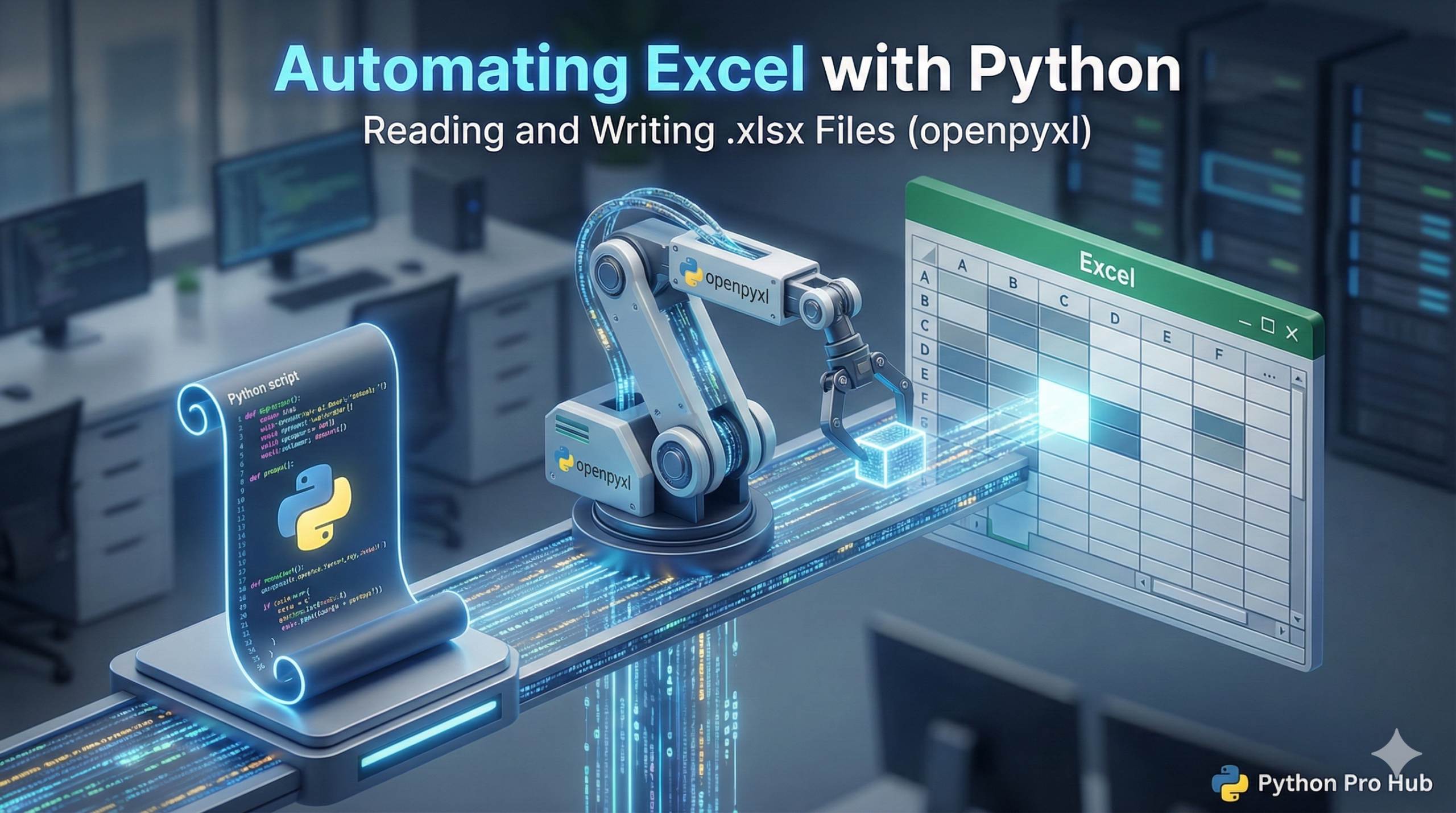
Do you need to edit an Excel file but keep its style and formulas? While Pandas is good for checking data, it often ignores the look of the file. For this, we use the <a href="https://openpyxl.readthedocs.io/en/stable/" type="link" id="https://openpyxl.readthedocs.io/en/stable/">openpyxl</a> library. Python Excel Automation is a great way to handle boring tasks. It helps manage your sheets and makes your work faster.
Step 1: Installation
First, you need to install the tool. Open your terminal and run this command:
pip install openpyxlStep 2: Reading an Excel File
from openpyxl import load_workbook

# Load the workbook
wb = load_workbook('report.xlsx')

# Select the active sheet
sheet = wb.active

# Read a specific cell (e.g., A1)
print(sheet['A1'].value)

# Loop through rows
for row in sheet.iter_rows(min_row=2, max_col=3, values_only=True):
    print(row)
Step 3: Writing to Excel
from openpyxl import Workbook

# Create a new blank workbook
wb = Workbook()
sheet = wb.active
sheet.title = "Monthly Report"

# Write data to cells
sheet['A1'] = "Product"
sheet['B1'] = "Sales"
sheet.append(["Widget A", 100])
sheet.append(["Widget B", 250])

# Save it
wb.save("new_report.xlsx")
Using this code is perfect for creating daily reports automatically. It saves you time and reduces errors in your daily tasks.