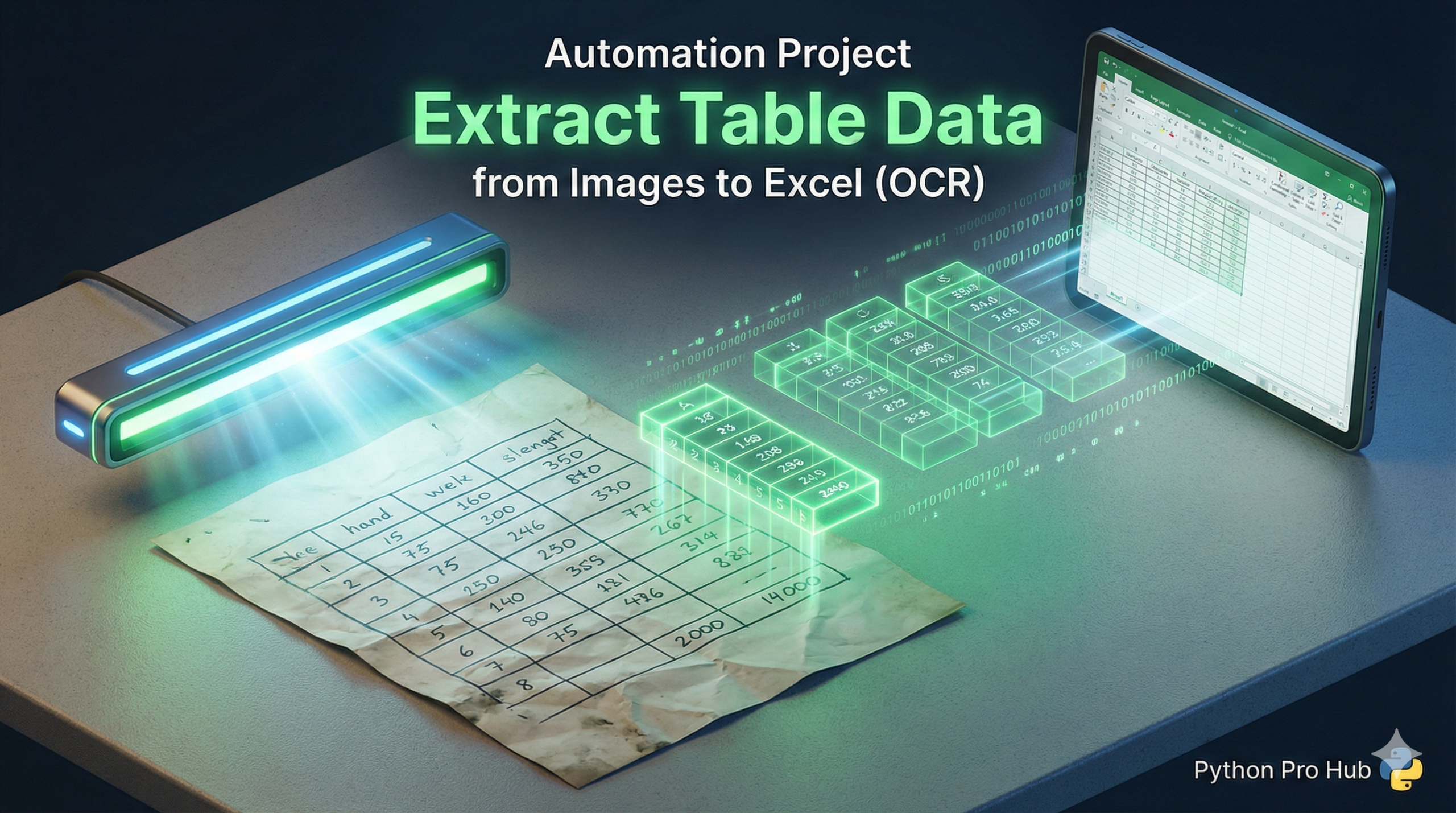
This project is a perfect example of “Automating the Boring Stuff.” In this tutorial, we’ll walk through using Python OCR to Excel as we combine two libraries you’ve learned:
- Pytesseract: To read text from a scanned image (OCR).
- Openpyxl: To write that text into a new Excel spreadsheet.
The Goal
Imagine you have a scanned image of a simple table, like invoice.png:
Item    Qty    Price
Widget  2      10.00
Gadget  5      5.50
We want to extract this text and put it into invoice.xlsx.
Step 1: Extract Text with OCR
First, let’s just get the raw text from the image.
import pytesseract
from PIL import Image

# Make sure tesseract is installed!
img_path = 'invoice.png'
try:
    img = Image.open(img_path)
    raw_text = pytesseract.image_to_string(img)
    print("--- Raw Text Extracted ---")
    print(raw_text)
except Exception as e:
    print(f"Error: {e}. Is tesseract installed and in your PATH?")
    exit()
Step 2: Process the Text and Write to Excel
Now we take that raw_text, split it into lines, and write it to an Excel file.
from openpyxl import Workbook

# 1. Create a new Excel workbook
wb = Workbook()
sheet = wb.active
sheet.title = "Invoice Data"

# 2. Process the raw text
for line in raw_text.splitlines():
    if line.strip(): # Skip blank lines
        # Split each line by spaces (a real-world script might use regex)
        columns = line.split()

        # 3. Append the list of columns as a new row in Excel
        sheet.append(columns)

# 4. Save the file
wb.save("invoice.xlsx")
print("\nData successfully written to invoice.xlsx!")
You’ve just built a bot that does manual data entry!