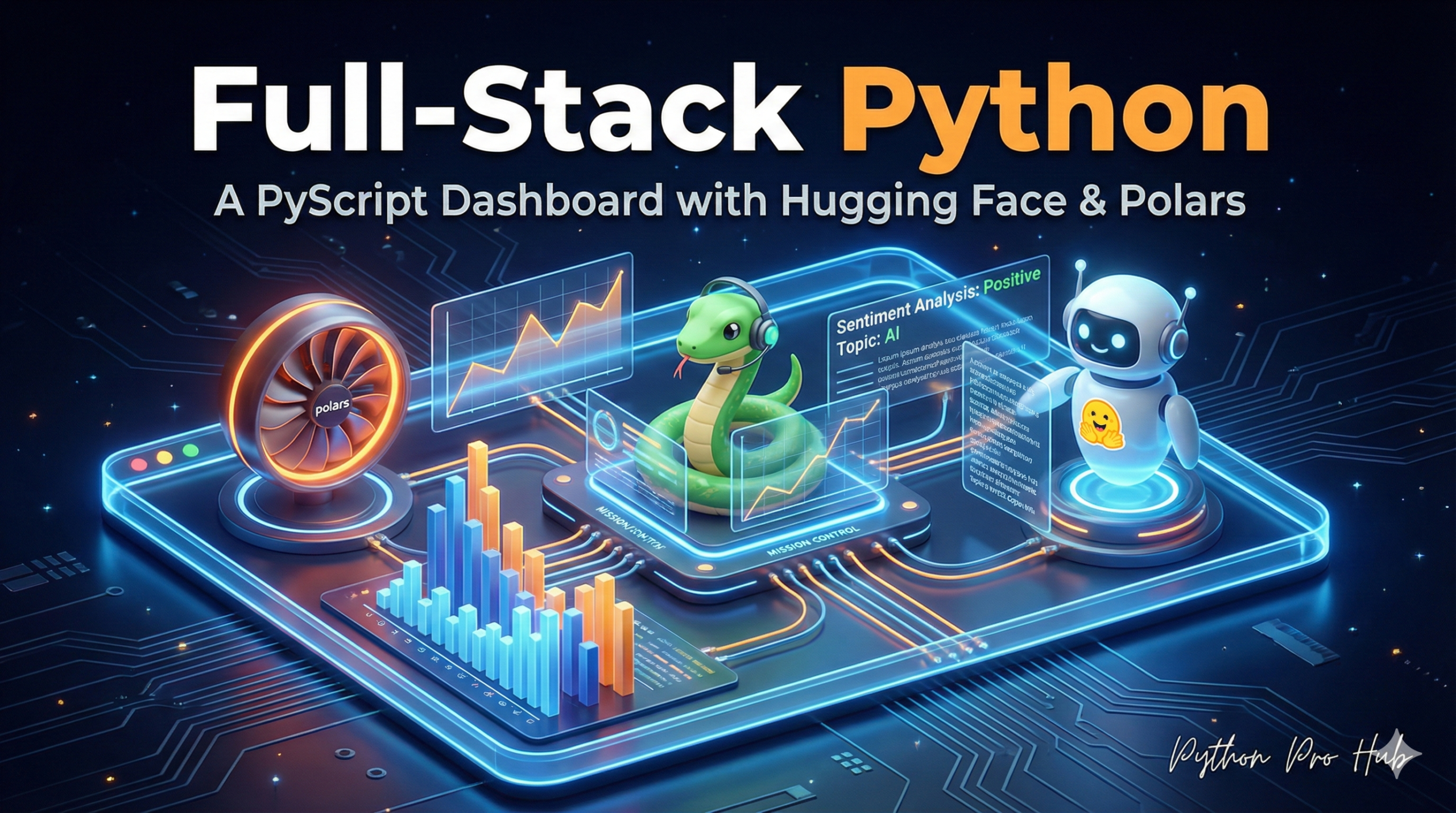
This is the future. Our dashboard will showcase how you can combine PyScript, Hugging Face, and Polars to create advanced data apps. We are going to build an interactive dashboard that runs 100% in the browser with NO Python server. It will:
- Use Hugging Face to run AI sentiment analysis.
- Use Polars to analyze the results.
- Use PyScript to run it all in HTML.
Step 1: The HTML Head (The Setup)
We must tell PyScript to load all three libraries.
<head>
  <link rel="stylesheet" href="https.pyscript.net/latest/pyscript.css" />
  <script defer src="https.pyscript.net/latest/pyscript.js"></script>

  <py-env>
    - transformers
    - torch
    - polars
  </py-env>
</head>
Note: This will be a heavy first load for the user, as it’s downloading the AI libraries.
Step 2: The HTML Body (The UI)
We need a text area, a button, and a place for the results.
<body>
  <h2>AI Sentiment Analyzer (Powered by Polars & PyScript)</h2>
  <textarea id="user-input" rows="5" placeholder="Type a review..."></textarea>
  <button id="analyze-btn">Analyze Text</button>

  <h3>Analysis Result:</h3>
  <div id="output"></div>
</body>
Step 3: The PyScript (The Magic)
This is the Python code that connects everything.
<py-script>
  from pyscript import document
  from transformers import pipeline
  import polars as pl
  import json

  # 1. Load the AI model (this will be slow the first time)
  sentiment_classifier = pipeline("sentiment-analysis")

  def analyze_text(event):
      # 2. Get text from the HTML input box
      text = document.getElementById("user-input").value

      # 3. Run the AI model in the browser!
      result = sentiment_classifier(text)

      # 4. Use POLARS to analyze the result
      # We put the AI output into a Polars DataFrame
      df = pl.DataFrame(result)

      # 5. Write the Polars DataFrame back to the HTML
      output_div = document.getElementById("output")
      output_div.innerHTML = df.to_html()

  # 6. Link the button to our Python function
  btn = document.getElementById("analyze-btn")
  btn.addEventListener("click", analyze_text)
</py-script>
You now have a full-stack, AI-powered data app that is just a single HTML file!