This is the most common—and most frustrating—error when you start working with real AI models.
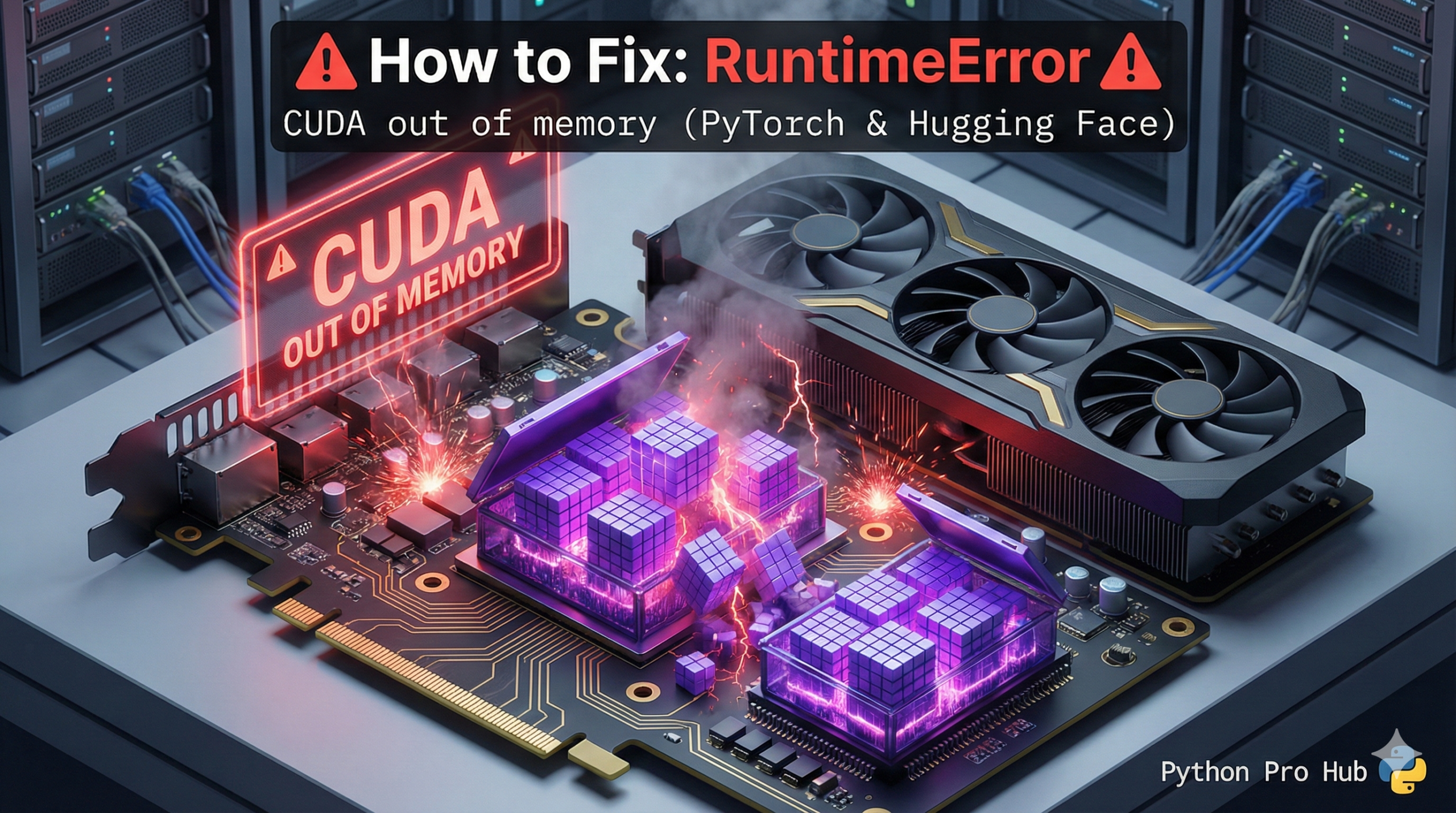
It means: “This AI model is too big to fit in your graphics card’s dedicated memory (VRAM).”
VRAM vs. RAM (The Key Difference)
- RAM (System Memory): You have lots (e.g., 16GB, 32GB). It’s used by your CPU.
- VRAM (Video Memory): You have a little (e.g., 4GB, 8GB). It’s super-fast memory on your GPU (NVIDIA card) where all the AI math happens.
When you load a big model, it has to fit entirely inside that 8GB of VRAM.
⚡ Quick Fix: RuntimeError: CUDA out of memory — PyTorch Batch Size Reduction, torch.cuda.empty_cache(), and Hugging Face load_in_8bit Fix
Your GPU ran out of VRAM — the model, the batch, and the intermediate tensors together exceed what your graphics card physically holds.
# WRONG — batch size too large for available VRAM
training_args = TrainingArguments(per_device_train_batch_size=32)  # crashes on 8GB VRAM

# FIX 1 — cut batch size in half until it fits (try 16 → 8 → 4 → 2)
training_args = TrainingArguments(per_device_train_batch_size=8)

# FIX 2 — clear leftover tensors stuck in VRAM between Jupyter cells
import torch
torch.cuda.empty_cache()   # frees cached allocations — restart kernel if this isn't enough

# FIX 3 — load large Hugging Face models in 8-bit to cut VRAM usage by ~50%
from transformers import AutoModelForCausalLM
model = AutoModelForCausalLM.from_pretrained(
    "mistralai/Mistral-7B-v0.1",
    load_in_8bit=True,         # requires bitsandbytes: pip install bitsandbytes
    device_map="auto"
)

# FIX 4 — switch to a smaller model variant
# Instead of: "gpt2-large"   (774M params, ~3GB VRAM)
# Use:        "distilgpt2"   (82M params, ~350MB VRAM)
The three causes below cover training loops, inference pipelines, and Jupyter notebook accumulation — with VRAM estimates for each scenario.
The causes scenarios and How to Fix It
Fix 1: Reduce Your Batch Size
Are you training a model? You’re probably trying to process 32 sentences at once. Reduce your “batch size” in your training code. Try batch_size: 16 or batch_size: 8. This processes less data at a time, using less VRAM.
Fix 2: Use a Smaller Model
You can’t run GPT-4 on a laptop. If you’re using a Hugging Face model, try a smaller version.
- Instead of:
model="gpt2-large" - Try:
model="gpt2"ormodel="distilgpt2"(a “distilled,” smaller version)
Fix 3: Clear the Cache (PyTorch)
If you’re in a Jupyter Notebook, Python might be “holding on” to old models in memory. You can try to force-clear it:
import torch
torch.cuda.empty_cache()
Often, the only real fix is to Restart your kernel to get a clean slate.
RuntimeError: CUDA out of memory — Four Fixes, Ranked by How Much VRAM They Save
RuntimeError: CUDA out of memory has one cause: you demanded more VRAM than your GPU holds. The fix is either to reduce what you load, reduce what you process at once, or compress the model before loading it.
Apply these four fixes in order of effort.
Cut batch size first. Halve it — 32 → 16 → 8 → 4. Each halving cuts training VRAM by roughly 40-50%. A batch size of 1 always fits if the model itself fits. Use gradient_accumulation_steps to compensate: accumulating 8 steps with batch size 4 gives you the effective gradient of batch size 32 without the VRAM cost.
Clear the cache between runs. torch.cuda.empty_cache() releases PyTorch’s cached allocator memory back to the OS. It won’t help if your model is still loaded — but in Jupyter notebooks where you’ve loaded and deleted several models across cells, it recovers stranded VRAM fast. If empty_cache() doesn’t help, restart the kernel — that’s the only guaranteed clean slate.
Use 8-bit or 4-bit quantization for large models. load_in_8bit=True cuts a 7B parameter model from ~14GB VRAM to ~7GB. load_in_4bit=True cuts it further to ~4GB. Both require pip install bitsandbytes and work with any Hugging Face model through the device_map=”auto” argument. This is the fix that lets consumer GPUs run models that otherwise require A100s.
Switch to a smaller model variant. distilgpt2 runs on 350MB of VRAM. gpt2-large needs 3GB. mistral-7B needs 14GB unquantized. Match the model size to your hardware before writing a line of training code — nvidia-smi in your terminal shows your total and available VRAM in real time.
nvidia-smi # run in terminal to see exact VRAM usage per process