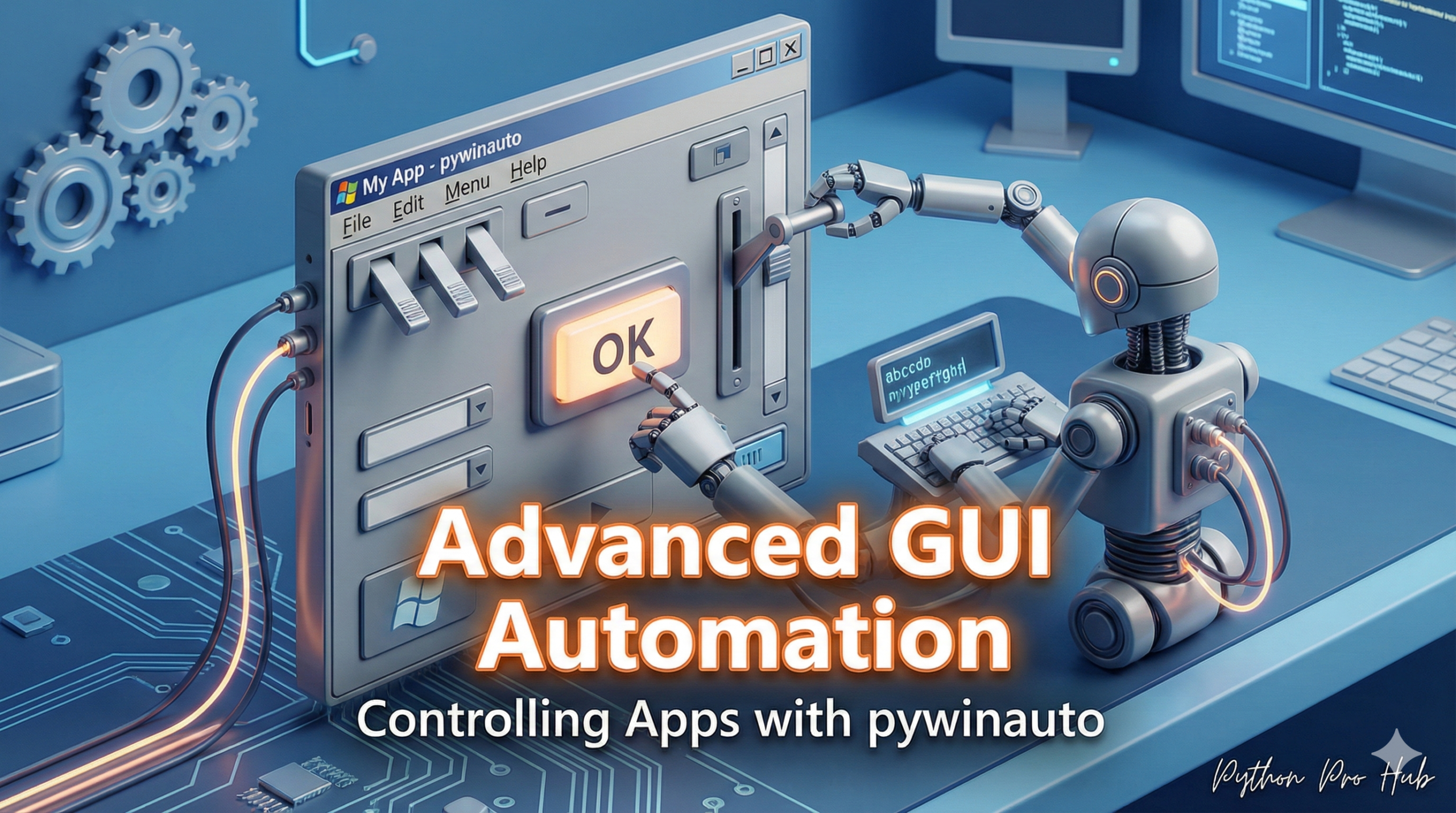
We’ve used PyAutoGUI, which is great, but it’s “blind.” It only knows coordinates (e.g., “click at x=500, y=300”). If a window moves, the script breaks. That’s why this Python pywinauto guide will help you move beyond just coordinates and automate GUIs with more reliability.
pywinauto is smarter. It connects to Windows apps and finds elements by their properties (like title="Save" or class_name="Edit"). This is much more reliable.
Note: pywinauto is for Windows only.
Step 1: Installation
pip install pywinauto
Step 2: Finding Your App
First, we need to connect to an application. Let’s automate Notepad.
from pywinauto.application import Application

# 1. Start Notepad
app = Application(backend="uia").start("notepad.exe")

# 2. Connect to the main window
dlg = app.top_window()
Step 3: Controlling the App
Now we can find elements inside the window and control them.
# 1. Find the text editor (its class name is "Edit")
# and type text into it
dlg.child_window(class_name="Edit").set_text("Hello from pywinauto!")

# 2. Select the "File" -> "Save As" menu
dlg.menu_select("File->SaveAs")

# 3. In the "Save As" dialog, find the "File name:" box
save_as_dlg = app.top_window()
save_as_dlg.child_window(title="File name:", class_name="Edit").set_text("test.txt")

# 4. Click the "Save" button
save_as_dlg.child_window(title="Save", class_name="Button").click()

print("File saved!")
This is the most robust way to automate legacy Windows applications that don’t have an API.
Key Takeaways
- PyAutoGUI is useful but relies on coordinates, making it less reliable for moving windows.
- pywinauto enhances automation by connecting to Windows apps and locating elements by their properties.
- This Python pywinauto guide focuses on automating GUIs with greater reliability than coordinate-based methods.
- Installation and connecting to an application are the first steps to use pywinauto effectively.
- The guide demonstrates how to control elements within a window, focusing on legacy Windows applications.